Remove an image from Google
Step by step, how to find and remove a URL of an image cached in Google’s image search.
Quick Text Guide
- • See the image in image search.
- • Click on the thumbnail.
- • Then you see the image again – click where it says to the right
: Share

- • When you click Share, you will be offerred several options, including
a goo.gl url.
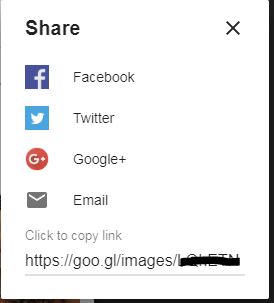
- • Copy that goo.gl url and open it in a new tab or window.
That will display yet again the image you want on the left. Right click inside that image and Copy image link. Open that image link in a new tab or window. - • If you do not get a 404 response to indicate that the image has been
deleted from the server, you cannot submit a request for removal of that
image from Google.
You can test the real server response code using any header cheacker, or else paste the url on the homepage of this site at www.canig.com. If you don't see a 404 response, it's game over. - • Otherwise use that url (of the full-size image) for a removal request in the public URL removal tool
- • I repeat : If you access the image url and still see the image then it has not been deleted from the site and you can not submit a url removal request. In these cases, you must refer back to the site and arrange deletion.
Instructions with images
- You may also want to ensure before you submit the request that it does return a 404 response. If you see a different image in place of the one you want removing then this is not sufficient and you would have to either continue working to get it removed from the source or await for Google to naturally recrawl the content and update the image.
- If the image has been replaced by another image, then you also cannot request removal. The actual url needs to be a 404 response and replacing an image will mean awaiting for it to be recrawled and updated. There are no timescales for that. Non-html content tends to take longer to update.